Project Details
Contributors
- Brent Jamieson G. Cuya
- Martin Templanza
Submitted to:
- Sir Rodolfo Canaria
Notes
- Please run this program on a native Turbo C++ installation.
- This program contains graphics functions and might not run on other compilers.
Issues
This program contains some known issues:
- The picture of the rock sometimes glitches out, forming a garbled image in the screen (it might be triggered when the player name reaches maximum length of 12-13 characters)
- The screen flickers as the screen updates. This is because the screen tries to clear the screen and draw the screen at the same time, which requires time. This can be solved using double buffering but it has issues of graphics elements becoming not aligned when switching pages. We decided to omit fixing this issue.
Source Code
The source code of this file is now transferred to the GitHub page linked here!
Gallery
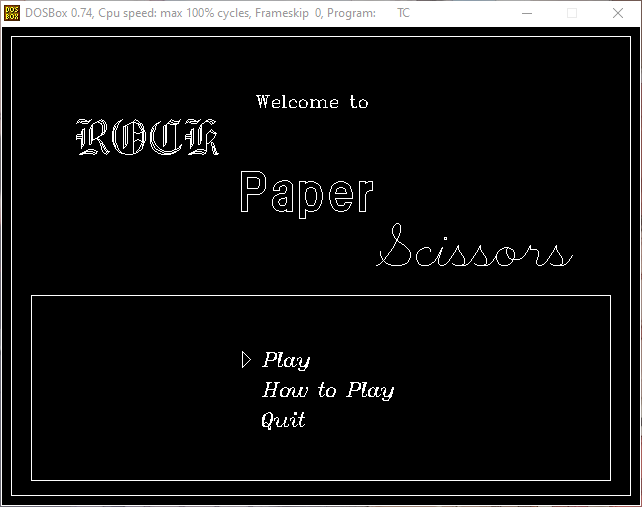
- Main Menu Screen
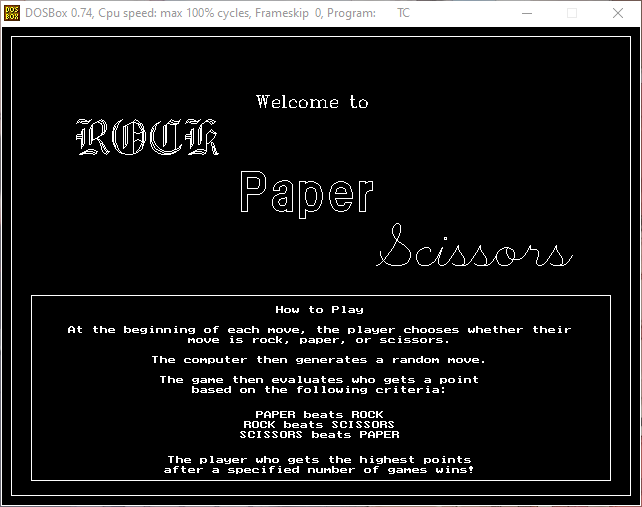
- How to Play
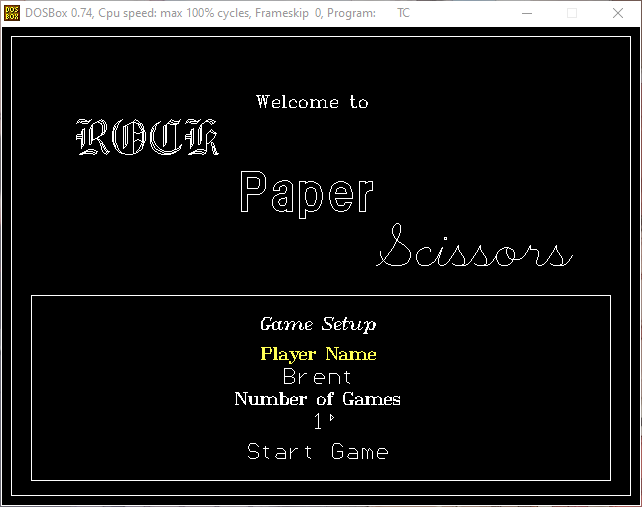
- Game Setup
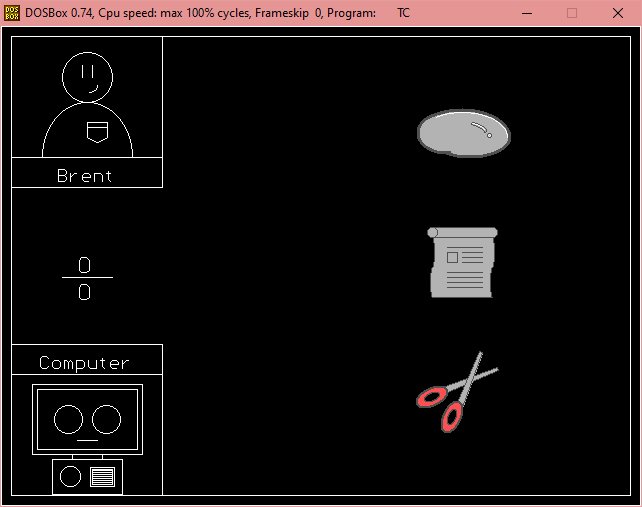
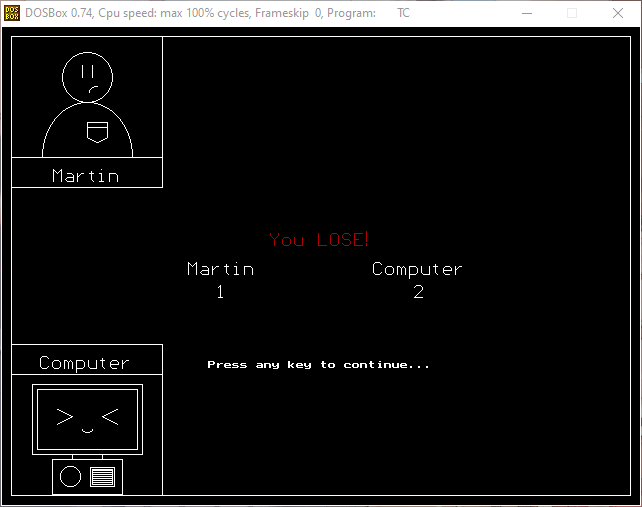
- Game Screen
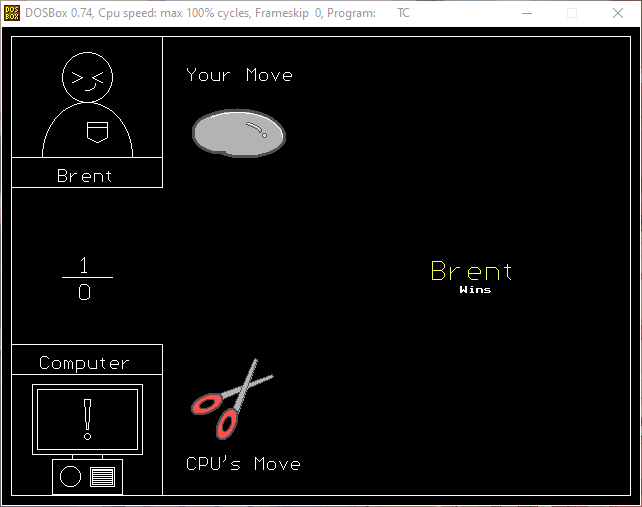
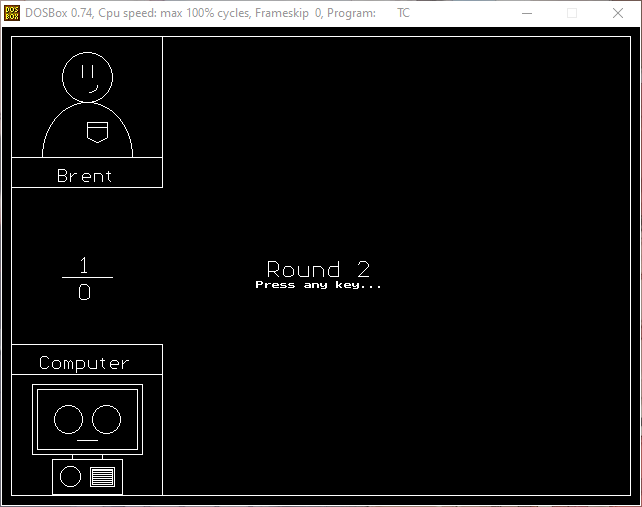
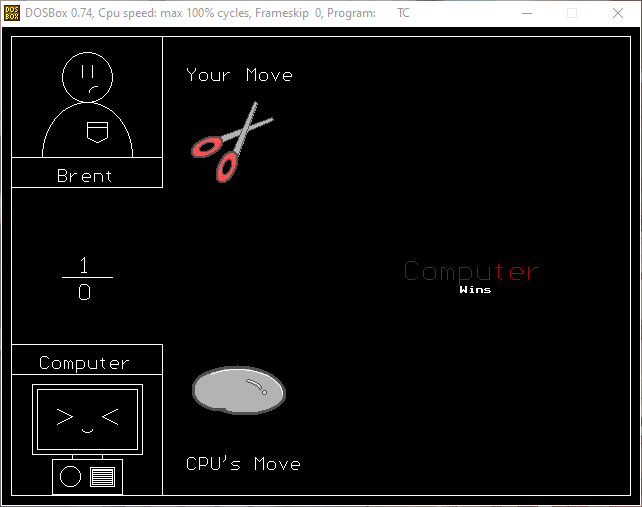
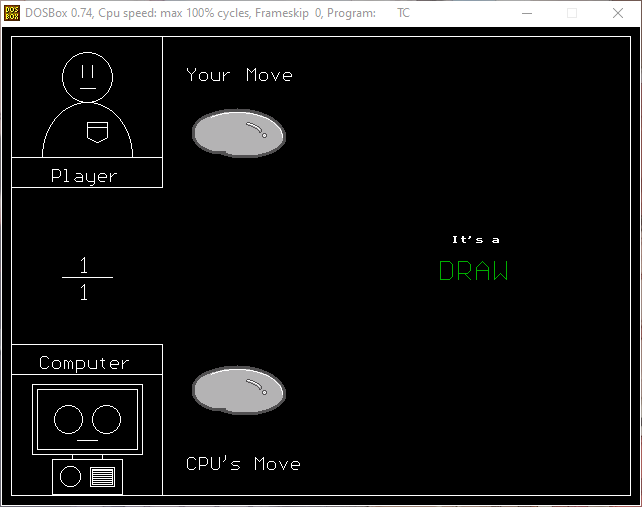
Documentation
Work in Progress
This section is still in progress.
This section will aim to explain how the certain sections of the program works
The Message Mechanism
The code runs on a message system from a modified version of my cursor control system in Cuya - Performance Task 3.
The plan was to use the return value of the getch() function from <conio.h> and then use a switch statement to execute code once a specific key is pressed.
Each key has a specific internal code that can be used to detect if that specific key is pressed.
Using this idea, we arrive to this portion of the code:
Message awaitKey () {
	int key = getch();

	switch (key) {
		case 0: // For arrow key support (they use extended keys)
		     int ext = getch();
		     switch (ext) {
				case 72:
					return MOVECURYN;
				case 80:
					return MOVECURYP;
				case 75:
					return MOVECURXN;
				case 77:
					return MOVECURXP;
				default:
					return NONE;
		     }
		case 27: // Esc key
			return BACK;
		case 119: // W key
			return MOVECURYN;
		case 97: // A key
			return MOVECURXN;
		case 115: // S key
			return MOVECURYP;
		case 100: // D key
			return MOVECURXP;
		case 32: // Space key
			return SELECT;
		case 13: // Enter key
			return SELECT;
		default:
			return NONE;
	};
}
Here:
- the line
int key = getch();tells the system to await for a keyboard keypress. - depending on the key pressed, an integer is assigned to the variable
key. - using a switch statement, this number can then be used to detect for a keypress
Message Enumeration
The function awaitKey() returns a Message enumeration.
This enumeration can then be used to link separate keys that are used to perform the same operation. For example, the Space and Enter key both correspond to the SELECT message.
These messages can just be detected instead and be used to signify certain commands.
For example:
- the
BACKmessage is used to signify that the user wants to return to the previous screen. - the
MOVECURXP,MOVECURYP,MOVECURXN,MOVECURYNmessages are used to move the cursor in theand (horizontal and vertical) directions.
Some key reasons why this can be good as well is that detecting for commands instead of key codes is intuitively reasonable when coding a large project like these.
Using Arrow Key Support
Arrow keys can be programmed to also manipulate the menu screen.
However, the way they can be detected are different, unlike normal keys in the keyboard.
The key here is upon pressing the arrow key on a getch() request, it returns 0.
This is the internal code for an escape character.
Upon returning 0, calling the getch() function for the second time will not wait for a keypress, but instead returns a unique value depending on the key pressed (in this case, the arrow keys).
Therefore, one strategy on detecting when an arrow key is pressed, is to:
- detect whether
getch()returns0, - then, detect using a switch statement if the value corresponding to an arrow key is pressed
switch (key) {
		case 0: // For arrow key support (they use extended keys)
		     int ext = getch();
		     switch (ext) {
				case 72:
					return MOVECURYN;
				case 80:
					return MOVECURYP;
				case 75:
					return MOVECURXN;
				case 77:
					return MOVECURXP;
				default:
					return NONE;
		     }
Processing Images
The program contains images that are made using the standard graphics functions like line(), ellipse(), circle(), and arc().
However, to create them, the images must be manually drawn, every time the screen or viewport is reset. This is why we utilize the getimage() and putimage() graphics functions.
The function initAssets() manages all aspects of asset/image processing,
which is called just after the graphics is initialized.
// Initializes assets used in the game
// It also allocates memory for the assets in the game to be loaded
// and displayed later.
// It uses getimage() for saving.
int initAssets() {
	unsigned int mem;
	const int centerx = getmaxx() / 2;
	const int centery = getmaxy() / 2;

	// Reserves memory required for the images
	unsigned int spritesize = imagesize(0, 0, 100, 100);
	rock = malloc(spritesize);
	paper = malloc(spritesize);
	scissors = malloc(spritesize);

	// Executes if memory allocation fails (null value)
	if (rock == NULL || paper == NULL || scissors == NULL) {
		endGraphics();
		cout << "Memory allocation failed!" << endl;
		getch();
		return -1;
	}

	// It uses double buffer to draw the assets in a separate page
	// in the background. The assets are still being drawn and saved
	// but the user does not see this process.

	// This sets the active working page to a page non-visible to user
	setactivepage(1);
	setviewport(centerx - 50, centery - 50, centerx + 50, centery + 50, 0);

	// Rock Design
	setcolor(7);
	setlinestyle(0, 0, 1);
	setfillstyle(1, 7);
	sector(50, 50, 0, 125, 48, 28);
	fillellipse(34, 45, 28, 20);
	fillellipse(58, 49, 40, 20);

	setcolor(8);
	setlinestyle(0, 0, 3);
	ellipse(50, 50, 0, 125, 48, 28);
	ellipse(34, 45, 110, 280, 28, 20);
	ellipse(58, 49, 233, 360, 40, 20);

	setcolor(15);
	setlinestyle(0, 0, 0);
	ellipse(50, 50, 0, 125, 45, 25);

	setcolor(8);
	setlinestyle(0, 0, 1);
	ellipse(50, 50, 20, 67, 24, 14);
	ellipse(52, 48, 25, 68, 24, 14);
	arc(72, 43, 280, 410, 2);
	arc(61, 37, 90, 180, 2);
	circle(77, 48, 2);

	setcolor(15);
	setlinestyle(0, 0, 0);
	ellipse(52, 48, 25, 68, 23, 13);
	arc(77, 48, 340, 360 + 100, 1);

	getimage(0, 0, 100, 100, rock);
	clearviewport();

	// Paper Design
	setcolor(7);
	setfillstyle(1, 7);
	bar(20, 15, 80, 25);
	pieslice(20, 20, 0, 360, 5);
	pieslice(80, 20, 0, 360, 5);

	setcolor(8);
	circle(20, 20, 5);
	arc(80, 20, 270, 450, 5);

	setcolor(7);
	setfillstyle(1, 7);
	bar(20, 25, 80, 85);
	sector(20, 70, 90, 270, 2, 15);
	sector(80, 40, 0, 360, 2, 15);

	setcolor(0);
	setfillstyle(1, 0);
	sector(20, 40, 0, 360, 2, 15);
	sector(80, 70, 90, 270, 2, 15);

	setcolor(8);
	ellipse(20, 40, 270, 450, 2, 15);
	ellipse(20, 70, 90, 270, 2, 15);
	ellipse(80, 40, 270, 450, 2, 15);
	ellipse(80, 70, 90, 270, 2, 15);
	line(20, 15, 80, 15);
	line(20, 25, 80, 25);
	line(20, 85, 80, 85);

	line(35, 35, 70, 35);
	line(50, 40, 70, 40);
	line(50, 45, 70, 45);
	line(50, 50, 70, 50);

	rectangle(35, 40, 45, 50);

	line(35, 60, 70, 60);
	line(35, 65, 70, 65);
	line(35, 70, 70, 70);
	line(35, 75, 70, 75);

	getimage(0, 0, 100, 100, paper);
	clearviewport();

	// Scissors Design

	setcolor(8);
	setlinestyle(0, 0, 0);
	setfillstyle(1, 7);

	int lblade[10] = {35, 55,
			  30, 50,
			  85, 30,
			  86, 33,
			  35, 55};

	int rblade[10] = {45, 65,
			  50, 70,
			  70, 15,
			  67, 14,
			  45, 65};

	fillpoly(5, lblade);
	fillpoly(5, rblade);

	setlinestyle(0, 0, 3);
	rotateEllipse(20, 60, 16, 8, -25);
	rotateEllipse(40, 80, 16, 8, -65);

	setfillstyle(1, 12);
	setlinestyle(0, 0, 1);
	fillRotEllipse(20, 60, 16, 8, -25);
	fillRotEllipse(40, 80, 16, 8, -65);

	setfillstyle(1, 0);
	fillRotEllipse(20, 60, 8, 4, -25);
	fillRotEllipse(40, 80, 8, 4, -65);

	getimage(0, 0, 100, 100, scissors);
	cleardevice();

	// Returns active, working page to the current page.
	setactivepage(0);
	setviewport(0, 0, getmaxx(), getmaxy(), 0);
	setcolor(15);
	setfillstyle(0, 15);
	setlinestyle(0, 0, 15);
	return 0;
}
Allocating Memory for the Images
The messages requires memory to be stored using getimage().
Therefore, we declare memory pointers to be used for the images for the rock, paper, and scissors.
void *rock, *paper, *scissors;Inside the initAssets(), we then allocate memory to these memory pointers, using malloc().
// Reserves memory required for the images
	unsigned int spritesize = imagesize(0, 0, 100, 100);
	rock = malloc(spritesize);
	paper = malloc(spritesize);
	scissors = malloc(spritesize);

	// Executes if memory allocation fails (null value)
	if (rock == NULL || paper == NULL || scissors == NULL) {
		endGraphics();
		cout << "Memory allocation failed!" << endl;
		getch();
		return -1;
	}
The amount of memory to use is calculated by the imagesize() function.
In this block of code, it also detects when memory allocation fails, that is if not enough memory is present.
In that case, malloc() returns NULL, which can be detected early on to prevent graphics glitches when using putimage().
This is why the initAssets() function returns an integer value, -1 if asset loading was not successful, and 0 if it is.
int main () {

	clrscr();
	srand(time(0));
	int mainChoice, cmd;
	int isAssetLoadSuccessful;
	gconfig gc;

	startGraphics(gc);

	isAssetLoadSuccessful = initAssets();
	if (isAssetLoadSuccessful == -1) {
		freeAssets();
		return -1;
	}
	loading(3);
	delay(50);
	border();
Of course, this would immediately end the program as if initAssets() returns -1, it automatically frees the memory allocated with malloc() then it executes a return statement.
Setting the Drawing Board
initAssets() is called at the beginning of the program, just after the graphics is initialized, but you would not see the images being drawn in the screen.
The main reason being is that they are drawn in a separate page using double buffering. Before anything is drawn, we set the active page into a separate page that the user does not see using the statement below.
// It uses double buffer to draw the assets in a separate page
// in the background. The assets are still being drawn and saved
// but the user does not see this process.

// This sets the active working page to a page non-visible to user
setactivepage(1);
The graphics are still drawn in that separate page, and still saved to memory via getimage(), yet the user does not see this as the visual page (or the page that the user sees) is not switched using the function setvisualpage().
After all images are now drawn and saved, the current active page is then switched to the current visual page, where anything we draw from this point onward can now be seen by the user.
// Returns active, working page to the current page.
setactivepage(0);
Drawing the Images
The images are drawn manually using graphics functions.
A layout is made using external software, for example: a geometry tool like Desmos.
Then, coordinates plotted into Desmos are then converted into Turbo C++ graphics functions, which can then be used to draw the actual image.
One example of these is shown in this construction in this link, and shown below is the actual code used to draw the image:
// Rock Design
	setcolor(7);
	setlinestyle(0, 0, 1);
	setfillstyle(1, 7);
	sector(50, 50, 0, 125, 48, 28);
	fillellipse(34, 45, 28, 20);
	fillellipse(58, 49, 40, 20);

	setcolor(8);
	setlinestyle(0, 0, 3);
	ellipse(50, 50, 0, 125, 48, 28);
	ellipse(34, 45, 110, 280, 28, 20);
	ellipse(58, 49, 233, 360, 40, 20);

	setcolor(15);
	setlinestyle(0, 0, 0);
	ellipse(50, 50, 0, 125, 45, 25);

	setcolor(8);
	setlinestyle(0, 0, 1);
	ellipse(50, 50, 20, 67, 24, 14);
	ellipse(52, 48, 25, 68, 24, 14);
	arc(72, 43, 280, 410, 2);
	arc(61, 37, 90, 180, 2);
	circle(77, 48, 2);

	setcolor(15);
	setlinestyle(0, 0, 0);
	ellipse(52, 48, 25, 68, 23, 13);
	arc(77, 48, 340, 360 + 100, 1);

	getimage(0, 0, 100, 100, rock);
	clearviewport();
Each asset are drawn one by one using basic graphics functions as shown above.
However, some functions, such as the design for the scissors requires special custom functions as Turbo C++ does not have the exact function in the <graphics.h> library to display the particular shape we were looking for.
One of which is a rotated ellipse shape, which is be made using the user-defined rotateEllipse() function, defined below. This shape is used at most 4 times as the handle for the scissors design.
void rotateEllipse (int centerx, int centery, int xrad, int yrad, int angle) {

	if (angle == 0 || angle == 180) ellipse(centerx, centery, 0, 360, xrad, yrad);
	else if (angle == 90 || angle == 270) ellipse(centerx, centery, 0, 360, yrad, xrad);
	else {
		float x, y, xNew, yNew;
		float theta = angle * (M_PI / 180.0);
		float alpha = 0.0;
		int i = 0, j = 2;

		int ellipsex[629] = {0};
		int ellipsey[629] = {0};
		int ellipse[1260] = {0};

		do {
			x = xrad * cos(alpha);
			y = yrad * sin(alpha);


			ellipsex[i] = centerx + (x * cos(theta) - y * sin(theta));
			ellipsey[i] = centery + (x * sin(theta) + y * cos(theta));

			alpha = alpha + 0.01;
			i++;
		} while (i <= 628);

		ellipse[0] = ellipsex[0];
		ellipse[1] = ellipsey[0];

		int point = 1;
		for (i = 1; i <= 628; i++) {
			if (ellipsex[i - 1] != ellipsex[i] || ellipsey[i - 1] != ellipsey[i]) {

				ellipse[j] = ellipsex[i];
				j++;

				ellipse[j] = ellipsey[i];
				j++;

				point++;
			}

		}

		ellipse[j] = ellipsex[0];
		j++;
		ellipse[j] = ellipsey[0];

		drawpoly(point, ellipse);
	 }
}
Using trial-and-error, we were able to make a rotated ellipse using the following method:
- The function
rotateEllipse()takes in 5 arguments, which are:, which are the coordinates to the center of the ellipse, xradwhich is the length of its horizontal radius,yradwhich is the length of its vertical radius,anglewhich is the angle of rotation (in degrees)
- The function first converts the angle into radians using the formula
- The function then repeatedly computes each coordinate that form the original ellipse without any rotation using the parametric representation of an ellipse, where
starts at , increments by , and stops at iterations (which is about radians or about a full turn) - Using equations of rotation, we then convert each
and coordinate and rotate it at an angle specified in the angleparameter, which we converted into radians.- The coordinates of each rotated
points are then assigned to their respective integer arrays ellipsex[628]andellipsey[628].- This means that a pair of numbers on both arrays with the same index constitute a coordinate on the rotated ellipse.
- Since Turbo C++ cannot handle floating point coordinates, the floating point parts are automatically truncated and converted into an integer.
- The coordinates of each rotated
- The above process may include repeated points due to the fact that Turbo C++ handles graphical coordinates.
- Therefore, the list of
points are filtered to only include non-repeated points, that is if the coordinates of the preceding point is the same as the coordinates of the current point, then the point is not added. to the filtered array ellipse. - This is also why the first two elements of the filtered array
ellipseis the coordinates of the first pointellipsex[0]andellipsey[0]. - Also, if a point is included in the filtered list, it then manually increments the
pointcounter, which counts how many points are there in the ellipse.- This is required as the
drawpoly()andfillpoly()graphics functions requires the number of points inside the polygon. - Doing it this way, we also create an array that contains the coordinates of each point on the rotated ellipse at the same time.
- This is required as the
- Therefore, the list of
- After filtering them, we set the next set of the coordinates to be the same as the first one (as ellipses are circular)
- Finally, the points for the rotated ellipse are drawn as a polygon using
drawpoly().- Doing all this allows me to also fill my ellipse with color using a similar function
fillpoly()described earlier, which was much better than usingfloodfill(), which was buggy and less reliable upon testing.
- Doing all this allows me to also fill my ellipse with color using a similar function
Game Mechanics
In this section, we now dive in how the game is structured.
/* Control */
int main () {

	clrscr();
	srand(time(0));
	int mainChoice, cmd;
	int isAssetLoadSuccessful;
	gconfig gc;

	startGraphics(gc);

	isAssetLoadSuccessful = initAssets();
	if (isAssetLoadSuccessful == -1) {
		freeAssets();
		return -1;
	}
	loading(3);
	delay(50);
	border();

	do {
		cmd = 0;
		clearviewport();
		title();
		mainChoice = mainMenu();

		switch (mainChoice) {
			case -1:
				clearviewport();
				cmd = exit();
				if (cmd == 1) mainChoice = 2;
				break;
			case 0:
				cmd = gameSetup();
				if (cmd == -1) break;
				gameProper();
				break;
			case 1:
				help();
				break;
		};

	} while (mainChoice != 2);

	freeAssets();
	endGraphics();

	getch();
	return 0;
}
Here, we can see the entire program layout:
- The program initializes control variables such as
mainChoice, the variable for storing the option you select at the main menu screen, andcmdused for other functions (such as if you want to exit the game by pressingEsc, or you want to return to the game select screen in the same way). - It also initializes the variable that stores if asset loading is successful, which is described in Allocating Memory for the Images.
- We then create a structure
gcfor the graphics configurations, to be used to initialize the graphics driver withstartGraphics(). - The loading animation is displayed using the function
loading() - The screen border is displayed after a
delay. - A do-while loop is created to handle the entire game operation.
In the next few sections, we then break down every feature in the game, including the rest of the game operation.
Loading Sequence
The loading animation, as mentioned earlier, is managed by the loading() function.
void loading (int min) {
	int i;

	// Initialize string loading states
	char loading[3][11] = {"Loading.", "Loading..", "Loading..."};

	getviewsettings(&vinf);
	settextstyle(0, 0, 0);

	/* Randomize number of loading animation cycles */
	for (i = 0; i <= min + rand() % 31; i++) {
		int frame = 0; // Reset frame to 0;

		// Loop to write frames
		while (frame != 3) {
			centertext((vinf.bottom - vinf.top - textheight(loading[frame])) / 2, loading[frame]); // Write frame
			delay(125);
			clearviewport();
			frame++; // Shift to next frame
		};

		clearviewport();

	}

}
The Turbo C++ can be fast enough that the game loads almost instantly, so to add a touch of realism, a pseudo random number is generated
What it does is:
- The function accepts an argument
min, which is the minimum amount of cycles to complete before the loading animation stops - Inside the function, it stores three different versions of the string
"Loading"using a multidimensional array. - Then, it generates a random number between
minandmin + 30usingrand(). This will serve as the range of how many cycles will it take to finish the loading animation (1 cycle = displaying all three versions of the string"Loading"). - After a for loop is initialized, it starts by setting the
framecounter to0, the first element. - It executes another while loop that cycles through different versions of the
"Loading"string. After the text is displayed, it waitsto clear the screen and switch to the next frame. - After the
framecounter reaches to3, the while loop exits and a cycle is completed. The screen is cleared once again. - It repeats this process until it reaches
min + rand() % 30times.
The Main Menu Screen
The main menu screen is handled by the mainMenu() function for updating the screen and the main() function as control.
int mainMenu() {
	int cChoices = 0;
	getviewsettings(&vinf);
	enum Message msg;

	settextstyle(7, 0, 2);
	pointer(210, 63, 8);
	redrawviewport(1, cChoices);

	// Main Menu Process
	do {
		msg = awaitKey(); // Await incoming message
		clearviewport();   // Clear existing screen

		/* Handle messages from awaitKey() */
		switch (msg) {
			case MOVECURYN:
				cChoices--;
				break;
			case MOVECURYP:
				cChoices++;
				break;
			case SELECT:
				clearviewport();
				return cChoices;
			case BACK:
				clearviewport();
				return -1;
		}

		// Handle overflow
		if (cChoices >= 3) cChoices = 0;
		else if (cChoices <= -1) cChoices = 2;

		redrawviewport(1, cChoices); // Redraw menu messages
	} while (1 == 1);
}
Aside from the initialization, the function redrawviewport() is called.
This redraws portions of the screen that are static and unchanging.
If we look up the function itself, we can see that it simply draws the text for the menus:
switch (mode) {
	case 1: // Main Menu
		outtextxy(230, 50, "Play");
		outtextxy(230, 80, "How to Play");
		outtextxy(230, 110, "Quit");

		// Handle pointer redraws
		pointer(210, 63 + (30 * info), 8);
		break;
}
The mode argument simply asks how to redraw the viewport, which can vary depending on the current screen (eg. when the player selects Play or Quit), in this case, the mode 1 represents that the main menu screen must be updated.
The info argument simply asks what part of the viewport to update. For example, if a player presses their down arrow key, then the screen should move the pointer downwards. The info serves as the placeholder for additional information on how to update the screen.
Therefore, now we can analyze what goes on into the menu screen.
- The program initializes a variable
cChoices, which stores the current selected option (0 = Play, 1 = How to Play, 2 = Quit) - The game first draws the menu screen, which displays the possible options that you can select.
- The function enters an indefinite do - while loop, which first awaits a message using
awaitKey(). - The viewport is cleared, then the received message is processed using a switch statement.
- If the program receives a
MOVECURYNor aMOVECURYPmessage, it then decrements or increments thecChoicesvariable, which indicates which option is currently selected. - If a program receives a
SELECTor aBACKmessage, it executes a return statement, thus exiting the indefinite loop.- If the program receives a
SELECTmessage, it returns the current value of thecChoicesvariable. - If the program receives a
BACKmessage, it returns-1.
- If the program receives a
- If the program receives a
- If the message is a
MOVECURYNorMOVECURYP, the rest of the code block still executes, after which we can update the screen using an another call toredrawviewport(1, cChoices).- If
cChoiceshappens to exceed2or go below0, an if statement handles this overflow/underflow before redrawing the viewport, so it would just cycle back to the topmost/bottommost option instead. This also limits the choices from0to2only.
- If
- Since the loop is indefinite, the loop executes again, which can only be exited when a
SELECTorBACKmessage is received.
After which if an option is selected, the control is passed again to the main() function
do {
		cmd = 0;
		clearviewport();
		title();
		mainChoice = mainMenu();

		switch (mainChoice) {
			case -1:
				clearviewport();
				cmd = exit();
				if (cmd == 1) mainChoice = 2;
				break;
			case 0:
				cmd = gameSetup();
				if (cmd == -1) break;
				gameProper();
				break;
			case 1:
				help();
				break;
		};

	} while (mainChoice != 2);
Depending on what the player selected in mainMenu(), the main() handles it using a switch statement and executes their respective functions that deal with that particular option
Exit Dialog Box
If the player sends a BACK message, that is if the player presses that Esc key in the main menu, an exit dialog box will appear. This is handled by the exit()
int exit () {
	enum Message msg;
	getviewsettings(&vinf);

	// Variable for chosen option
	int cChoices = 0;

	// Screen setup
	settextstyle(7, 0, 2);
	redrawviewport(2, 0);
	rectangle((viewwidth() - textwidth("Yes")) / 2 - 30 - 5, 100, 5 + textwidth("Yes") + ((viewwidth() - textwidth("Yes")) / 2 - 30), 110 + textheight("Yes"));

	do {
		// Await key press
		msg = awaitKey();

		// Redraw static parts of the screen
		clearviewport();
		redrawviewport(2, 0);

		// Execute command per key press
		switch (msg) {
			case MOVECURXN:
				cChoices = 1 - cChoices;
				break;
			case MOVECURXP:
				cChoices = 1 - cChoices;
				break;
			case MOVECURYN:
				cChoices = 1 - cChoices;
				break;
			case MOVECURYP:
				cChoices = 1 - cChoices;
				break;
			case SELECT:
				if (cChoices == 0) return 1; // Transfer control to to quit if Yes
				else if (cChoices == 1) return 0; // Return control to menu screen if No
			case BACK:
				return 0;
		}

		// Highlight selected option
		if (cChoices == 0) rectangle((viewwidth() - textwidth("Yes")) / 2 - 30 - 5, 100, 5 + textwidth("Yes") + ((viewwidth() - textwidth("Yes")) / 2 - 30), 115 + textheight("Yes"));
		else if (cChoices == 1) rectangle((viewwidth() - textwidth("No")) / 2 + 30 - 5, 100, 5 + textwidth("No") + ((viewwidth() - textwidth("No")) / 2 + 30), 115 + textheight("No"));

	} while (1);
}
The exit() function works the same way as the mainMenu() function.
It sets up the screen, then uses a rectangle to highlight the option, which pressing any of the cursor movement keys will switch the rectangle to the other option.
If the user selects "Yes", that is if the cChoices = 0, then the function returns 1, indicating that the user wants to quit.
Otherwise, if the user selects "No" or attempts to send a BACK message, the function simply returns 0, which does nothing but proceeds back to the main menu screen.
This is again handled by the main() function at this part of the code.
do {
		cmd = 0;
		clearviewport();
		title();
		mainChoice = mainMenu();

		switch (mainChoice) {
			case -1:
				clearviewport();
				cmd = exit();
				if (cmd == 1) mainChoice = 2;
				break;
			case 0:
				cmd = gameSetup();
				if (cmd == -1) break;
				gameProper();
				break;
			case 1:
				help();
				break;
		};

	} while (mainChoice != 2);
We can see here that if exit() returns 0, which indicates that the user wants to quit, it simply sets mainChoice = 2, which is the same as if the user selects the quit option directly from the main menu.
Setting it to 2 makes the loop condition false, exits the do - while loop in main(), thus exiting the program.
Game Setup
Upon selecting "Play", the mainMenu() function returns 0, which then executes the gameSetup() function.
This function takes care of data needed to customize the game itself, such as setting the player name, or even selecting the number of rounds.
int gameSetup () {
	enum Message msg;
	getviewsettings(&vinf);

	int cmd;

	do {
		pselect:
		;
		cmd = playerselect();
		if (cmd == -1) {
			clearviewport();
			return -1;
		}

		roundchoices:
		;
		cmd = numGames(msg);
		if (cmd == -1) goto pselect;


		// Start game confirmation
		clearviewport();
		redrawviewport(3, 3);

		msg = awaitKey();

		switch (msg) {
			case SELECT:
				return 0;
			case BACK:
				goto roundchoices;
		}

	} while (1);
}
This function is composed of two more constituent functions, playerselect() and numgames()
Player Name Selection
After initialization, the game executes playerselect() which prompts the player to type in their name using a keyboard.
This is stored in the playerName global variable, which is by default is set to "Player".
char playerName[12] = "Player";This name is then used to display whether the player wins. It is also used to display the player’s name under the portrait box.
int playerselect () {
	// Initializes index at the current player name
	int index = strlen(playerName);
	int keypress;

	do {
		clearviewport();
		redrawviewport(3, 1);

		// Detects a generic key press
		keypress = getch();

		// Executes commands based on keypresses
		if (keypress == 27) break; // Exits when Esc is detected
		else if ((keypreshjjnb == 13) || (keypress == 32)) return 0; // Proceeds to next screen upon Space/Enter
		else if (keypress == 8) { // Processes backspace
			if (index > 0) {  // Checks if current index is not below 0
				index--;  // Shifts index
				playerName[index] = '\0'; // Replaces current index with a null character (to simulate key deletion)
			}
		} else { // Facilitates any other key presses
			if (index <= 12){ // Checks if current index is greater than 12 (max name limit)
				playerName[index] = char(keypress);
				index++;
				playerName[index] = '\0';
			}
		}

	} while (1);
	return -1;
}
The function works as follows:
- It first sets the current index to the length of the string
playerName. - Then, it redraws the viewport.
- It awaits for a keypress.
- If the player presses the
Esckey, it executes a break statement, exiting out of the loop, and returns-1. - If the player presses the
SpaceorEnter, it returns0. - If the player presses any keyboard letter, number, or symbol:
- It modifies the character at the current index and replace it with the character we pressed.
- Then, it increments the index variable.
- It now sets the current index with a null-terminating character.
This tells the program that the string ends at this point.
- If the player presses the
Backspacekey,- It decrements the index variable.
- Then, it sets the current index into a null-terminating character.
- If the player presses the
The program then checks if the string length is greater than Backspace key, it detects if the index not equal or below zero before deleting the characters in the player name.